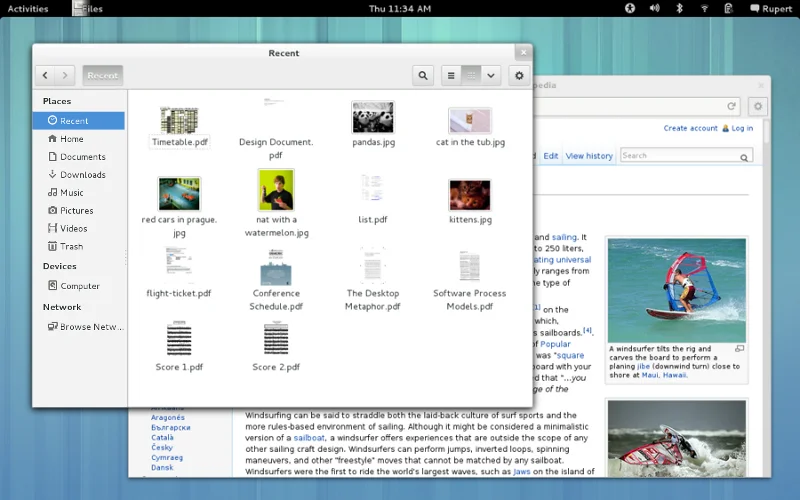
GNOME 3.6 is the latest update to GNOME 3 and represents 6 months of work by the GNOME Project. It delivers a number of major new features, including a reworked Activities Overview, updated message tray and notifications, an enhanced Files application, as well as improved accessibility support and integrated input sources for using different languages. It also incorporates a host of smaller enhancements. Together, these changes make GNOME 3 better than ever before.
The GNOME Project is an international community of contributors that is backed by a non-profit Foundation. We focus on user experience, stability, first-class internationalization, and accessibility. GNOME is Free Software and available to all. All our work is free to use, modify and redistribute.
Since the last version, 3.4, approximately 1112 people made about 38302 changes to GNOME. Anyone can get involved in GNOME to help us to improve our software. If you are interested in working on GNOME, you can join us. You can also support us financially by becoming a Friend of GNOME.
What's New in Our Core User Interface
Activities Overview
The Activities Overview has received plenty of attention this release. One change is the way that application launchers are reached. In previous versions, you used the application tab in the top-left to access your applications. This has been replaced with a new grid button that is located in the dash. This greatly improves the layout of the overview and highlights the all-important search bar.


Lock Screen

The lock screen is a major new feature for GNOME 3.6. It shows an attractive image on the screen while your computer is locked and also provides useful functionality, such as the display of notifications and the ability to control media playback.
The lock screen means that you can see what is happening while your computer is locked, and it allows you to get a summary of what has been happening while you have been away. (This functionality can be disabled via the Brightness & Lock section in System Settings.) It also means that you can easily change the volume, skip a track or pause your music without having to enter a password.

The login screen has also been updated for GNOME 3.6, and has a new visual style and other minor enhancements. Combined with the new lock screen, the result is a smoother experience when you log in or unlock your computer.
Keyboard Shortcut: The new lock screen is of course accessible by more than a mouse. Press either Return or Escape to get to the password prompt.
Message Tray
The message tray has received some major updates for GNOME 3.6. Many of these changes were based on feedback and testing, which indicated some interaction issues with the old tray design.

The new tray is clearer, better looking, and easier to interact with. It refines the existing design so that it is less error-prone and more satisfying to use. Instead of overlapping the viewing area, the new tray slides the view up, revealing the tray below. The items in the tray are also bigger, clearer, and don't move around, making them easier to use.
The way that the tray is triggered has also been altered. The hot corner – which many people had problems with – has been replaced. Instead, the whole of the bottom screen edge now acts as a trigger area; letting the mouse rest there for a short period will cause the tray to appear. We plan to improve this behavior in subsequent releases.
Keyboard Shortcut: For the first time, the message tray is also accessible with the keyboard. Press Super+M to bring up the message tray.
Notifications
GNOME's notification pop-ups have had quite a few refinements for 3.6. For the new release, we have made them:
- Smarter: notifications are smarter in GNOME 3.6. If you are running a full screen application or game, we only show you your important notifications. All other notifications are delayed until you stop using your full screen application.
- More noticeable: we have tweaked the behavior of notification pop-ups to make sure that you see all your notifications. No longer will you miss out on a notification as we only hide a notification after we know you have interacted with the system.
- Easier to dismiss: notification bubbles now feature close buttons. This makes it much clearer how to dismiss a notification.
System Settings

GNOME 3.6 comes with lots of changes to System Settings, including improvements to the main interface as well to individual settings panels.
The main System Settings interface has received a lot of attention. It now includes larger icons and a better layout. All the icons are now displayed whenever possible, without the need for scrolling, and the window size automatically adjusts to compensate for small screens. Search results are also shown in a nicer way.
Background

We looked at how someone would select a background in 3.4, and noticed a number of issues. It was quite easy to accidentally change the current background, while selecting a new background was quite difficult.
In 3.6, we show the current background as a large thumbnail. When clicked, you can easily select either a background, one of your pictures or a background color. To make your choice easier, we have made the previews bigger.
We have also refreshed the default background in 3.6, and have updated the choice of alternative backgrounds to include new images. Setting a single color as a background has also been improved and features a new set of colors.
Tip: Files and the Image Viewer allow you to select any picture as a background. Additionally, you can drag a new picture to the Background window.
Mouse & Touchpad

GNOME 3.6 includes revamped Mouse & Touchpad settings. The old settings panel was overhauled to provide a set of options that are much easier to understand. It also features a pretty new test area which enables scrolling settings to be tested – something that was not possible previously.
If you use a touchpad, the new Content sticks to fingers setting allows you to drag content as if sliding a physical piece of paper. This feature is also known as Natural Scrolling or Reverse Scrolling.
Online Accounts

Logging into Online Accounts has been made nicer, as login pages can now appear in your language. We also try to show the mobile version for the login pages, which makes it quicker and easier to use the page.
We have also added several new types of Online Accounts:
- Facebook: is now enabled by default. You will now be able to chat with your Facebook friends through the Facebook account.
- Microsoft Exchange: we now support Exchange through Exchange Web Services (EWS). Evolution continues to allow you to setup EWS from its preferences so that it can run in other environments.
- Windows Live: this has been enhanced to include support for SkyDrive allowing people access documents on SkyDrive through Documents like you can with your Google account.
Sound

The Sound panel has been made easier to use by removing the Hardware tab. Instead, the device lists in the Input and Output tabs offer more fine-grained choices. This improvement relies on PulseAudio 2.0.
Universal Access

The Universal Access settings have been redesigned in order to make them more coherent and easy to use. All of the sections now follow the same layout. The zoom options dialog has also been redesigned to accommodate new settings for brightness, contrast, inversion and grayscale.
User Accounts
A major new feature in GNOME 3.6 is the addition of Enterprise logins (also called Active Directory or Kerberos logins). This allows GNOME to be used in centrally managed and corporate environments in a much more integrated manner. Users can enroll their computer with an enterprise network, and use their enterprise user name and password to log into GNOME.
Network

The network settings panel has been improved to make it easier to select wireless connections. A new list now gives access to all available and remembered wireless networks. You can inspect and forget access points, regardless whether they are currently in range or not.
Printers
The Add New Printer dialog has been greatly improved; it lets you add directly connected printers as well as printers discovered on a network. You can also enter a printer network address directly.
It is now possible to select a different driver (or PPD file) for a printer, by clicking on the Model field. The Options button also lets you modify the default values for many printer options that are otherwise available in the print dialog.
User Menu

The user menu has been refined for the latest GNOME release, making it more compact and adding functionality that was missed by many users. After reviewing the performance of this menu, and taking user feedback into account, the decision was made to introduce the Power Off item by default. You can suspend by pressing the Alt key in the user menu or by simply closing the lid on your laptop.
We have also endeavored to make the menu as smart as possible. As a result, the Switch User and Log Out items are now only shown when there is more than one user.
And More...
GNOME 3.6 includes many smaller changes, including bug fixes as well as enhancements. Together, these add up to a general improvement in the user experience. The following are just a few examples.
- The mnemonics underlines that become visible when you press Alt wait for a split second before appearing now, to avoid flickering when Alt+Tab or Alt+PrintScreen is used.
- The appearance of the drop-down calendar that is accessible from the top bar has been refined, making it easier to read, better looking, and easier to interact with.
- Password dialogs when mounting remote locations or encrypted drives are now presented in the same system style as other password dialogs.
- In the Activities Overview, a clearer highlight effect has been added to the active workspace.
- New keyboard shortcuts have been added for changing the size of windows, including Super+Left, Super+Right, Super+Up, Super+Down.
- The access points in the network menu are sorted by strength, making it easier to find networks that are close by.
- For people who like easter eggs, we have added something fun. You'll need to be quick with your mouse: test to see if you can find it.
- Modal dialogs have been updated with a new style. Instead of dropping down like a curtain, they expand from the middle of the window, which is now shaded while they are open. This makes it easier to focus on them.
What's New in Our Applications
Files
The Files application (also known as Nautilus) has been a major focus for work in the 3.6 cycle. The newest release includes many new features and a large number of bug fixes, resulting in a more functional and effective application.
Recent Files

A new location containing recently used files has been added. This provides convenient access to files that are likely to be relevant, and also serves a useful reminding function. The new Recent location is shown when the Files application is first started, meaning that it is immediately useful.
Functional Search

Files has never had an effective search capability. With GNOME 3.6, this omission has finally been rectified. The new version includes a powerful search feature, which can be used by simply typing. It is case insensitive, can search for hidden files or directories, can work recursively, does not only do prefix matching, can search metadata, has ranked results based on a weighting algorithm, and can work on indexed and non-indexed directories.
Simpler and More Natural Workflows

A number of common workflows have been improved with the new version of Files. These enable users to take actions based on context, and aims to make common actions simple and straightforward.
The inclusion of new Move To... and Copy To... actions in context menus is one new workflow that offers a useful alternative to copy-and-paste and drag-and-drop.
Another addition that makes a common action that little bit easier is the New Folder with Selection context action. This makes a common action – selecting some files and putting them in a new folder – more immediate and less laborious.
Coherence and Consistency

Many small changes have been introduced to spread consistency all across the Files application. Common usage patterns have been identified and they are followed in every single aspect of Files. In this regard, a much improved and space efficient maximized window state, a more consistent menu layout and behavior, more consistent use of icons, and a more GNOME 3 style pathbar and toolbar.
More Polish
A large number of smaller enhancements have also been made to the Files application for this release. Date and time formats have been cleaned up, making date and time information easier to read and less intrusive. The menus have also been cleaned up and the preferences window has been polished.
Web
Did You Know? GNOME Web is using WebKit, the same web browser engine that is also used by Safari.
Web is the GNOME web browser.
The Overview

The most noticeable difference in 3.6 is the first version of 'The Overview'. While this is still an evolving design, it already is a solid improvement to the user experience.
The previously blank start page was replaced by a grid that holds your most visited pages. Your favorite pages are now easier to access, especially on touch devices, and valuable screen real estate is used! And if an unwanted page ends up there, you can remove it from the grid by clicking on the X icon on the top right corner of each snapshot.
Full Screen Mode
For a long time Web's full screen mode was somewhat awkward. You would still get a toolbar, so it was not really full screen, plus it would have a strange button embedded in it telling you how to go back to the safety of the vanilla mode. With more HTML5 games or presentations done inside browsers, it was about time to make your browser show you the full content and nothing but the content. So we just did that.
Other Bits and Pieces
As usual there are lots of additional features and bug fixes, too numerous to mention: automatic session recovery, tab-less mode, Do Not Track, using SoupTLD to make the URL completion smarter (so it can automatically figure out that google.com is a URL, but foo.bar is a string you want to search), support for showing details of an invalid SSL certificate, and many more.
Boxes

A preview version of Boxes was introduced in GNOME 3.4. With GNOME 3.6, this application is joining the growing family of new GNOME applications.
Did You Know? A development version of Boxes was used for various screenshots included in these release notes.

A lot of effort has been put into making Boxes work smoothly, e.g. when resizing the window of a running virtual machine. The new features implemented in 3.6 include:
- Search: Both inside Boxes and in the overview mode of GNOME Shell.
- Much improved look and feel and animations.
- Reworked selection mode to make more consistent with GNOME Documents.
- Allow customizing a box memory and disk size before it's created.
- Make it possible to force the shutdown of hung boxes through an application menu item.
- Allow renaming of boxes.
- Indicate installations in progress.
- Allow favoriting boxes.
- Create virtual machines based on host capabilities and architecture.
Empathy

The contact list in GNOME's messaging and chat application Empathy received a cleaner design which makes the presentation of contacts consistent with Contacts. Groups have been disabled by default as we noticed most people do not make use of them. Instead, we make contacts easier to find using the integrated live search. If you still want to group contacts, this can be enabled in Preferences.
Top Contacts are always displayed at the top of the contact list. This contains the contacts that you have tagged as favorites but also those contacts that you talk to the most often.
Evolution
This release makes some small improvements to Evolution.
- Rendering of email now uses WebKit which improves the display of HTML enabled mail.
- A confirmation dialog is shown when (accidentally) moving folders.
- The calendar provides a global search that lets you find events that are not in the currently viewed time frame.
- GroupWise accounts can now receive emails via IMAPX and send via SOAP.
- The 'Summary' field in the event/task/memo editor now supports spell checking.
- Exchange accounts can now be configured using GNOME Online Accounts.
Disk Usage Analyzer

Disk Usage Analyzer is a graphical tool for that you can use to view and monitor your disk usage and folder structure. For 3.6 it was rewritten from scratch. It has a new user interface and received speed improvements.
Clocks
Clocks is an application to handle world times. It provides alarms, a stopwatch and a timer. It is not ready for prime time yet, however we want to show you some development screenshots to get your appetite going for 3.8:


Disks
Did You Know? The majority of the intelligence of Disks is being developed as part of the udisks freedesktop.org project.
Disks is an application to view, modify and configure disks and other storage media.
- Power management as well as acoustic levels can be configured for ATA disks.
- A Zzz icon is shown for any disk which is in standby mode.
- You can also manually put a disk into standby mode and also wake it up.
- Ability to securely erase a disk.
- Long-running jobs are now displayed in the Disks user interface along with a way to cancel the job as well.
- By popular demand, the benchmark feature that was lost in the Disks/udisks rewrite that landed in GNOME 3.4 is now back.
- To prevent data loss, Disks will inform the system about the long tasks it might be running. As a result, it will be more difficult to either suspend or power off your machine.
Font Viewer

The Font Viewer application has been rewritten to match the new design used for GNOME 3 applications.
- Can now show an overview of all installed fonts.
- Optimizes screen space usage when the application is maximized.
- Addition of a top bar to easily navigate within the application.
- Makes use of the application menu.
What's New in Accessibility
Accessibility Always On
So far, users that needed any assistive technology had to activate accessibility support. This was cumbersome, because they had to figure out how to do that without the help of any assistive technology that they may need.
Starting with GNOME 3.6, the accessibility stack has been highly integrated into the core, so users that need any assistive technology can use GNOME right from the start.
This feature is an important milestone in GNOME's mission to deliver a free and open desktop to everyone. More than ever, it can be stated that GNOME accessibility is built-in and not bolted-on.
To summarize:
- Built-in and always ready accessibility support.
- Users don't notice any difference unless they use any Assistive Technology.
Improved Braille Support in Orca
Orca, the GNOME screen reader, presents the information from the screen via synthesized speech or via refreshable braille display. For this release, the owners of a braille output device will notice a remarkably better user experience accessing documents and web pages than in previous releases.
Web Accessibility Improvements
WebKitGTK+ received a lot of attention and many bug fixes that have resulted in a better accessibility support. We are quite pleased with the progress thus far towards making content viewed in Web compellingly accessible for Orca users.
Brightness, Contrast, Inversion and Grayscale
GNOME 3.6 brings inverse video, brightness, contrast, and grayscale options to the GNOME magnifier. The combination of these options is very powerful and is particularly useful for people with low-vision, any degree of photophobia, or just for using the computer under adverse lighting conditions.

What's New in Internationalization
Integrated Input Methods
For the very first time, GNOME comes with support for input methods out of the box. It is no longer necessary to manually choose and install an input method framework that may not fit very well into the overall user experience. Input methods are now a part of the core GNOME user experience, just like keyboard layouts.

Feedback Wanted! Integrated input methods is a major new feature, and changes functionality that is important to many users. We recognize this and want to hear about how you want the new feature to develop in the future. If you do not wish to make use of this functionality, or prefer to use another framework to provide you with input methods, this remains possible as the IBus integration can be disabled.

Both keyboard layouts and input methods appear as Input Sources in the Region & Language settings and in the GNOME shell keyboard indicator. 'Candidate windows' that are used by some input methods are presented by GNOME shell, and have the same appearance regardless of whether you are typing in an application window or in the GNOME shell search entry.
Changes to Existing Keyboard Settings: The integrated input methods feature has resulted in the rearrangement of some existing keyboard preferences. If you customize your keyboard layout, there are changes you need to be aware of:
- The keyboard combination to change the input source or keyboard layout can now be customized by using the Shortcuts tab of the Keyboard settings.
- Options for the Compose Key, as well as the Alternative Characters Key (also known as the 3rd level chooser key) can also be found in the Shortcuts tab of the Keyboard settings.
- Other keyboard layout customization options can now be found in GNOME Tweak Tool.
The input method support in GNOME 3.6 is based on IBus.
What's New for Administrators
XDG Base Directory Specification Usage
Unix-like systems have traditionally lacked a standard way to store application or user data on a per-user basis. Consequently these data are often stored in an ad-hoc, inconsistent, and problematic way in "dot files" of the user's home directory.
freedesktop.org therefore issued a recommended solution for this problem.
Several applications (such as accerciser, baobab, epiphany, gconf, gdm, gnome-desktop, gnome-keyring, gnome-tweak-tool, gthumb, gtk+, jhbuild, libgnomekbd, mutter, nautilus, and planner) provide improved cross-desktop compatibility in GNOME 3.6 by inheriting the freedesktop.org directory specification.
What's New for Developers
GTK+ 3.6

- GtkLevelBar is a new widget for displaying the strength or level or some quantity; you can see this used in the Power settings.
- GtkIconView supports height-for-width layout.
- GtkSpinButton can be oriented vertically. This is used in the new Clocks application.

- GtkSearchEntry is a new subclass of GtkEntry that is set up to be used as a search entry; this is widely used to ensure consistent behavior and appearance of search entries.
- GtkEntry lets you set Pango attributes for the text (e.g. to make it big or bold).

- GtkMenuButton is another new widget. It shows a button that brings up a menu. This widget is used for the 'gears' menu in several applications.
- The theming code now supports multiple backgrounds and transitions. Limited support for CSS animations is available too.
GLib 2.34
- GApplication supports non-unique use cases, you can simply specify NULL as application ID.
- The new GApplication::dbus-register signal lets you register D-Bus objects before the bus name is taken.
- The included copy of PCRE has been updated to version 8.31, and new functionality in 8.x versions of PCRE has been exposed with new GRegex API.
Clutter 1.12
- Added ClutterScrollActor, an actor that allows displaying large children, and scrolling the viewport to specific points (with or without implicit animation)
- Added new multi-touch gesture actions, like ClutterZoomAction, ClutterPanAction, and ClutterRotateAction, as well as many fixes for multi-touch support on X11
- Provides more implicitly animatable properties, as well as ClutterTransitionGroup (to group explicit transitions together) and ClutterKeyframeTransition (to describe a transition using key frames)
- Added ClutterGridLayout, a layout manager that provides the same layout policy of GtkGrid
- Layout managers now respect the easing state of the actors, so it's possible to easily animate layout transitions without requiring specific code inside ClutterLayoutManager implementations
- Added new easing modes defined by the CSS3 Transitions specification: steps, cubic-bezier, step-start, step-end, ease, ease-in, ease-out, ease-in-out
- API deprecations: ClutterMedia (the API is provided by Clutter-GStreamer); ClutterTexture (replaced by ClutterImage); ClutterCairoTexture (replaced by ClutterCanvas); ClutterAnimation, ClutterAnimator, ClutterState (replaced by implicit and explicit animations)
Use of Deprecated Libraries
- Several applications (such as evolution-data-server, evolution-ews, folks, gnome-search-tool, gnome-session, gnome-shell, gnome-user-share, libgweather and network-manager-applet) now use GSettings as their storage backend instead of deprecated GConf.
- alacarte and pitivi migrated from static PyGTK bindings to dynamic PyGObject introspection-based bindings. This makes the API of those modules automatically available to a wide variety of other programming languages and runtimes.
- Disks and gvfs have been migrated from using dbus-glib to GDBus.
- Several packages now use libsecret instead of gnome-keyring, such as Disks, empathy, gvfs, vinagre, and vino. The libsecret library is a new client for the Secret Service D-Bus API. It allows storage of passwords in a common way on the desktop.
- Many packages migrated from GStreamer 0.10 to GStreamer 1.0, such as brasero, cheese, gnome-contacts, gnome-control-center, gnome-shell, pitivi, sound-juicer, sushi, and vala.
- Many packages migrated from using gnome-doc-utils to yelp-tools for their documentation, such as accerciser, anjuta, brasero, eog, evince, gdm, glade, gnome-dictionary, gnome-color-manager, gnome-nettool, gnome-panel, gnome-system-log, gnome-terminal, gnome-user-share, gnote, gtk-doc, gucharmap, jhbuild, mousetweaks, nemiver, orca, seahorse, system-monitor, totem, and zenity.
And More...
Other GNOME Platform improvements in GNOME 3.6 include:
- Pango, the library for laying out and rendering of text, has been ported to use Harfbuzz to provide higher quality rendering and memory savings. As a side effect the deprecated pangox backend was removed. A tarball of a standalone pangox helps with the transition of the deprecated pangox APIs.
- The Zeitgeist activity logging framework is used in Empathy and by folks.
- libgdata received support for Google Drawings.
- To test your DBus app you can use GTestDBus so your tests will be using a private session bus instead of the user's.
- gnome-common provides a
GNOME_CODE_COVERAGEm4 macro to allow projects to easily add code coverage support using lcov. See totem-pl-parser for an example implementation. - GNOME's default GSettings backend dconf received a massive refactoring with a focus on testability.
- librest, the API for accessing RESTful web services, received HTTP authentication support.
- All gvfs utilities, as well as command line utilities that are part of GLib and GTK+ now include manual pages.
Plans for 3.8
- libgnome-keyring will be completely deprecated in favor of libsecret. The libsecret library is a new client for the Secret Service D-Bus API. It allows storage of passwords in a common way on the desktop.
- GNOME's browser Web is being ported to WebKit2. If you want to give this work in progress a try, build the browser with
--with-webkit2. This will mean:- Increased responsiveness (how amazing the scrolling is!) and stability.
- Thanks to the OOP plugin support GTK 2.x plugins work out of the box again. That means Flash support without having to rely on
nspluginwrapper. - Other things that are there, but invisible to users, like increased security or a new and improved API, built on top of all our experience with the classic WebKit.
- Evolution will use WebKit also for composing messages. This will deprecate GtkHtml. It will also receive a new importer framework.
- Evolution-Exchange (one of Evolution's connectors to Microsoft Exchange servers) might be deprecated in favor of Evolution-EWS and Evolution-MAPI.
Getting GNOME 3.6
The code for GNOME 3.6 is available to download as Free Software. To install it, we recommend that you wait for the official packages provided by your vendor or distribution. Popular distributions will make GNOME 3.6 available very soon, and some already have development versions that include the new GNOME release.
If you cannot wait or just want to give GNOME a try, download one of our live images!
If you have a technical background you can also build GNOME from source.
About GNOME
The GNOME Project is an international community of contributors that is backed by a non-profit Foundation. We focus on user experience, stability, first-class internationalization, and accessibility. GNOME is Free Software and available to all. All our work is free to use, modify and redistribute.
GNOME 3.6 could not have been possible without the hard work and dedication of the GNOME community. Congratulations and thanks to everyone.
On behalf of all the contributors, enjoy GNOME 3.6!
Internationalization
Thanks to members of the worldwide GNOME Translation Project, GNOME 3.6 offers support for more than 50 languages with at least 80 percent of strings translated, including the user and administration manuals for many languages.
- Assamese
- Asturian
- Basque
- Belarusian
- Brazilian Portuguese
- British English
- Bulgarian
- Catalan
- Catalan (Valencian)
- Chinese (China)
- Chinese (Hong Kong)
- Chinese (Taiwan)
- Czech
- Danish
- Dutch
- Estonian
- Finnish
- French
- Galician
- German
- Greek
- Gujarati
- Hebrew
- Hindi
- Hungarian
- Indonesian
- Italian
- Japanese
- Kannada
- Korean
- Latvian
- Lithuanian
- Malayalam
- Marathi
- Norwegian Bokmål
- Polish
- Portuguese
- Punjabi
- Romanian
- Russian
- Serbian
- Serbian Latin
- Slovenian
- Spanish
- Swedish
- Tamil
- Telugu
- Thai
- Turkish
- Uighur
- Ukrainian
- Vietnamese
Many other languages are partially supported, with more than half of their strings translated.
Detailed statistics, how you can help make GNOME available in your language, and more information are all available on GNOME's translation status site.